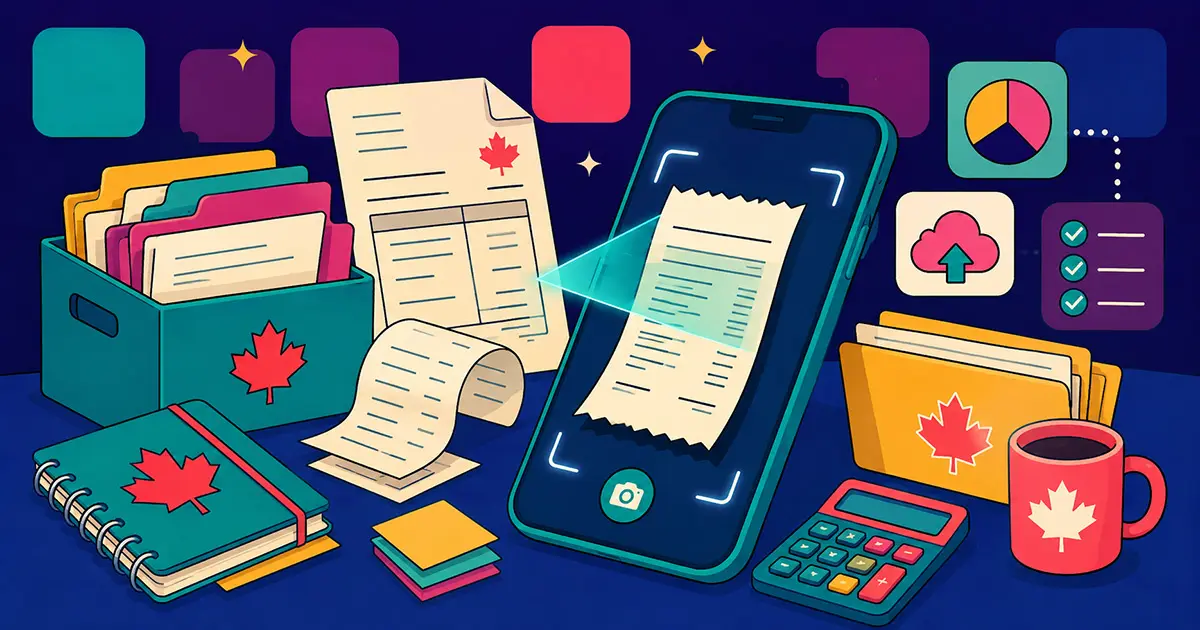
If you've shopped for expense software in the last year, you've seen the phrase everywhere: AI receipt scanner. Nearly every app claims it now. But most people using one couldn't tell you what's actually happening between snapping a photo and seeing a clean row of data — merchant, date, total, tax — appear on their screen a few seconds later.
Understanding how AI receipt scanning actually works matters for a practical reason: at tax time, you're trusting this software with numbers the CRA will eventually see. This guide breaks down what's really happening under the hood, how accurate these tools actually are, and what to check before you build your AI expense tracking around one.
What an AI receipt scanner actually does
The term "AI receipt scanner" gets used loosely, and it covers two genuinely different technologies:
Plain OCR (older technology)
Optical Character Recognition reads the pixels on a receipt and converts them into raw text. It doesn't understand what it's reading — it just recognizes characters and spits out a text dump. You still have to figure out which line is the total, which is the tax, and which is the store name.
AI extraction (what modern tools use)
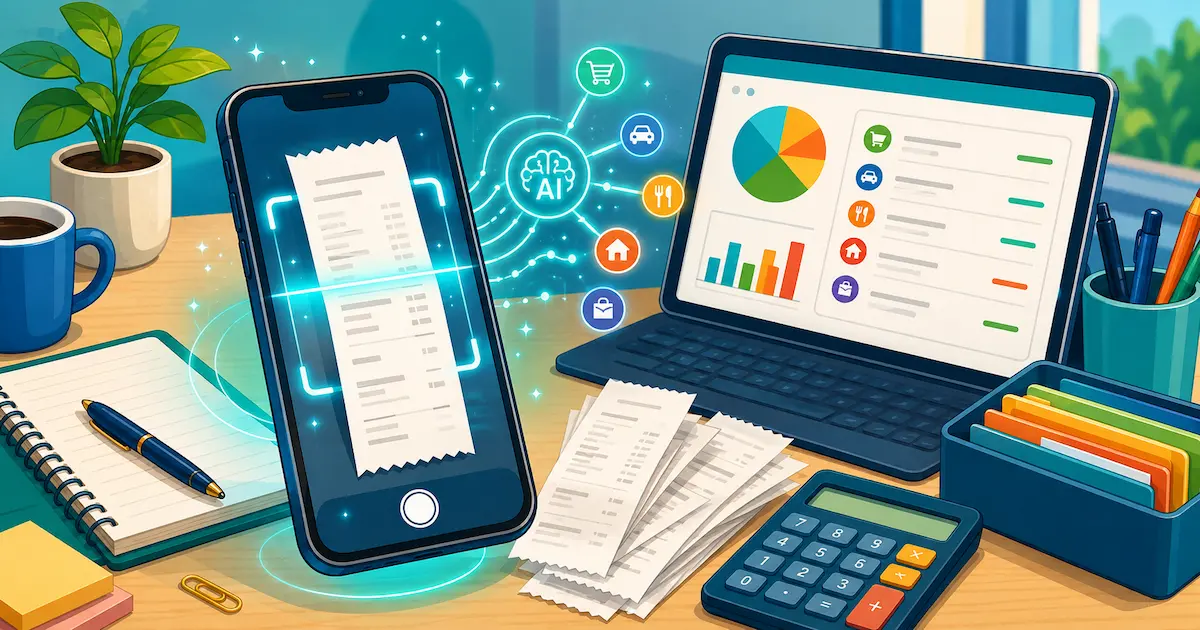
A true AI receipt scanner sends the image to a vision-capable language model that understands receipt structure the way a person would. It doesn't just read characters — it identifies the merchant, matches the date format to the receipt's country, separates GST/PST/HST/tax lines, converts currency symbols to proper codes, and structures all of it into fields your expense tracker can actually use.
This is the difference that matters most: OCR gives you text. AI extraction gives you structured, usable data.
How AI reads a receipt, step by step
Here's roughly what happens between taking the photo and seeing your expense populate:
- Image capture and cleanup — the app crops the receipt boundary and corrects for angle, glare, or a crumpled fold
- Visual analysis — the AI model scans the full image, not just isolated text blocks, so it can use layout and positioning (a total is usually bottom-right, a date near the top) to identify fields correctly
- Field extraction — merchant name, transaction date, subtotal, tax amount(s), total, payment method, and currency are pulled individually
- Tax handling — in Canada this means recognizing GST, PST, HST, or QST specifically rather than lumping all tax into one number, since each has different rules for input tax credits
- Currency detection — a well-built scanner prioritizes the physical address on the receipt over the currency symbol alone, since a "$" could mean CAD or USD depending on where the store actually is
- Category assignment — the expense gets auto-sorted (meals, travel, office supplies, etc.) based on the merchant and item context
All of this typically happens in a few seconds, which is what makes AI receipt scanning feel instant compared to manual entry.
How accurate is AI receipt scanning, really?
Marketing pages love round numbers like "99% accurate." In practice, accuracy depends heavily on the receipt itself:
- Clean, printed thermal receipts — very high accuracy, close to what vendors advertise
- Faded thermal paper (common on receipts a few weeks old) — accuracy drops noticeably; totals and dates are usually still fine, line items can be missed
- Handwritten receipts — the hardest case for any AI model; expect to double-check these
- Foreign currency or non-English receipts — good AI tools handle this well since they're reading meaning, not just characters, but it's worth spot-checking the currency field the first few times
- Digital/email receipts (PDF invoices, email confirmations) — typically the most accurate, since there's no photo distortion involved at all
The honest takeaway: AI receipt scanning is accurate enough to eliminate manual data entry for the vast majority of receipts, but it isn't infallible. A good app makes it fast to glance at the extracted total before saving, rather than assuming it's always correct.
AI receipt scanner vs. manual entry vs. basic OCR apps
| Method | Speed | Accuracy | Tax detail handling | Effort required |
|---|---|---|---|---|
| Manual entry | Slow | High (if careful) | Manual, easy to miscategorize | High |
| Basic OCR app | Fast | Text only, no structure | You sort it out | Medium |
| AI receipt scanner | Fast | High on clean receipts | Automatic (GST/PST/HST separated) | Low — quick review only |
What to look for in an AI receipt scanner
If you're looking for the best AI receipt scanner for Canada — we've also written a full comparison of the top receipt scanner apps — these are the things that actually matter beyond the AI headline feature:
- CRA-ready recordkeeping — does it store the actual receipt image, not just extracted numbers? The CRA requires you to keep the original document, not just a summary. See CRA's official recordkeeping guidelines for what's expected.
- Email and inbox forwarding — a huge share of receipts today arrive by email (parking apps, subscriptions, online orders). A scanner that only handles photos misses these entirely.
- Bank statement import — the ability to cross-check extracted receipts against your actual bank or credit card statement, so nothing slips through unrecorded.
- Multi-currency support — matters if you buy from US vendors, travel, or bill international clients.
- Duplicate detection — a common failure point; the same receipt photographed twice, or a photo plus an emailed copy of the same purchase, should be caught automatically.
- Where your data actually lives — check whether receipts are backed up somewhere you control (Google Drive, Dropbox) in addition to the app's own storage.
Common mistakes people make with AI receipt scanning
- Never reviewing extracted totals — even at high accuracy, a quick glance before saving catches the occasional misread faded receipt
- Deleting the paper/photo after scanning — keep the original image on file; the CRA wants the source document available — see our guide on how long to keep receipts in Canada — not just the extracted number
- Ignoring currency mismatches — a US purchase tagged as CAD (or vice versa) will throw off your expense totals silently
- Not forwarding email receipts at all — if your tool supports it, this alone can capture 20-30% more deductible expenses that would otherwise be missed entirely
Frequently Asked Questions
Is AI receipt scanning secure?
Reputable tools encrypt data in transit and at rest, and process images through established AI providers rather than storing them insecurely. Check any app's privacy policy for specifics on where and how long data is retained before trusting it with financial documents.
Does it work with handwritten receipts?
Usually, though accuracy is lower than with printed receipts. Handwritten totals and dates are the fields most worth double-checking.
Can it handle foreign currency receipts?
Modern AI-based scanners generally can, using the physical store address as the strongest signal alongside the currency symbol. This is one area where AI extraction meaningfully outperforms basic OCR.
Is AI receipt scanning CRA-compliant?
The scanning itself doesn't determine compliance — what matters is whether the app retains the original receipt image (not just extracted text) for the retention period the CRA requires. See our guide to CRA's receipt-keeping requirements for specifics, and confirm this before relying on any tool exclusively.
The bottom line
An AI receipt scanner should save you from manual data entry without asking you to blindly trust every extracted number. The best tools combine accurate AI extraction with the practical things that actually matter for Canadian freelancers and small businesses — email forwarding, bank statement reconciliation, multi-currency handling, and CRA-ready records.
If you're ready to stop manually entering receipts, try iSaveBill free — snap a photo, forward an email, or upload a PDF, and let AI handle the rest.