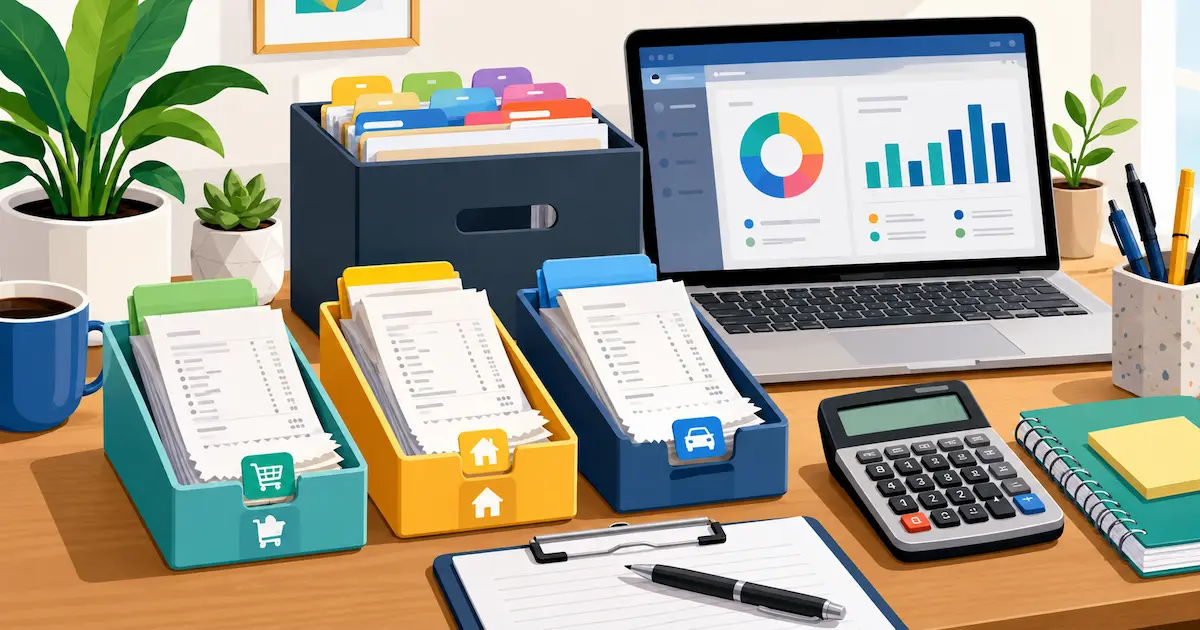
If your receipts live in three places at once — a jacket pocket, a folder buried in your email, and a "Receipts 2026" folder on your phone you haven't opened in months — you don't have a receipt problem. You have an organizing problem. The good news: a working receipt organizer system takes about ten minutes to set up and, once it's in place, adds almost no extra work to your week.
This guide walks through a simple system for organizing receipts — digital and paper — that holds up at tax time and doesn't depend on you remembering to do anything extra.
Why a Receipt Organizer Actually Matters
It's not just about tidiness. The CRA has specific requirements for what a receipt must show and how long you need to keep it, and a disorganized pile of paper and forwarded emails makes it nearly impossible to prove anything during an audit or year-end review. An organizer system solves two problems at once:
- Findability — you can locate any receipt in seconds, not by digging through a shoebox or scrolling your camera roll
- Completeness — nothing falls through the cracks between your phone, your inbox, and your wallet
Digital vs. Paper: Which Should You Use?
Most people end up with a mix of both — but one should be your system of record, and the other should just feed into it.
| Factor | Paper Filing | Digital Organizer |
|---|---|---|
| Searchability | Manual, slow | Instant search by merchant, date, category |
| Fade risk | Thermal paper fades within months | No fade — image preserved permanently |
| Backup | One copy, easy to lose | Cloud-backed, survives a lost phone or fire |
| Setup effort | Low — just a folder and envelopes | A few minutes to connect an app |
| CRA-ready | Yes, if stored and organized properly | Yes, and easier to prove completeness |
Paper works fine if you have very few receipts a month and are disciplined about filing. Once you're past a handful of receipts a week, digital wins — mainly because thermal receipts physically fade, and a folder of curling paper isn't something you can search.
The 3-Step Digital Receipt Organizer System
You don't need a complicated setup. Three steps, done consistently, is enough:
1. Capture immediately
The single biggest reason receipt systems fail isn't the filing — it's the gap between getting the receipt and doing anything with it. Snap a photo the moment you get a paper receipt, or forward the email the moment it lands. Waiting "until later" is how shoeboxes happen.
2. Categorize once, at capture time
Assign a category (meals, travel, office supplies, software, etc.) right when you capture the receipt — not in a big batch at the end of the month. AI-powered receipt apps do this automatically by reading the merchant and line items, which removes this step from your to-do list entirely.
3. Back up automatically, don't rely on memory
Your organizer isn't complete until there's a second copy somewhere other than your phone. A dead phone, a stolen laptop, or a corrupted file shouldn't mean lost records. Automatic backup to Google Drive or Dropbox handles this without you doing anything manually.
Folder and Category Structure That Actually Works
If you're building a manual folder structure (in Drive, Dropbox, or on your desktop), organize by month first, category second — not the other way around:
Receipts/
  2026/
    01-January/
      Meals/
      Travel/
      Office Supplies/
    02-February/
      ...
Organizing by month first matches how you'll actually need the data — bank statement reconciliation and monthly expense reports are both month-based. Category-first structures look tidy but make month-end reconciliation harder, since you're opening a dozen category folders instead of one month folder.
If you're using a receipt organizer app instead of manual folders, this structure happens automatically — receipts are tagged by date and category the moment they're captured, and you can filter either way without moving a single file.
How AI Receipt Organizer Apps Remove the Manual Work
The three steps above can all be done by hand, but an AI-powered receipt organizer app does all of them automatically the moment you take a photo or forward an email:
- AI reads the receipt and extracts merchant, date, total, and tax — no manual entry
- Categories are suggested automatically based on the merchant and items
- Receipts are backed up to Google Drive or Dropbox the moment they're saved
- Email receipts (parking, subscriptions, online orders) can be forwarded directly instead of manually saved as PDFs
iSaveBill handles all four of these automatically, plus multi-currency support and bank statement import for receipts you never got a paper copy of in the first place. It's built for freelancers and small businesses who want a receipt organizer that requires zero ongoing filing effort.
Try iSaveBill free — organize every receipt automatically
No credit card required. Snap a photo or forward an email and let AI capture, categorize, and back up the receipt for you.
Get Started Free →Frequently Asked Questions
What is the best way to organize receipts?
Capture receipts immediately (photo or email forward), categorize them at the moment of capture rather than in a batch, and back them up automatically to cloud storage. Organize by month first, category second, since that matches how you'll use the data at tax time.
Should I keep paper receipts or go digital?
Digital is generally better once you have more than a handful of receipts per week — thermal paper fades within months, while a digital image doesn't degrade and can be backed up. Digital records are also fully CRA-compliant if done right. Paper is fine for very low volume if you're disciplined about filing it the same day.
How long do I need to keep organized receipts?
In Canada, the CRA generally requires records to be kept for six years. See our full breakdown of CRA retention rules for exceptions and specifics.
Can a receipt organizer app replace manual filing entirely?
Yes, for most freelancers and small businesses. Apps like iSaveBill handle capture, categorization, and backup automatically, which covers everything a manual folder system does — with less ongoing effort and no fading paper.
What's the difference between a receipt organizer and a receipt scanner app?
A receipt organizer is the overall system — how receipts are captured, categorized, and stored. A receipt scanner app is one tool within that system that automates the capture and categorization steps. See our comparison of the best receipt scanner apps for Canada if you're choosing one.
Bottom Line
A good receipt organizer isn't about buying more folders or better envelopes — it's about closing the gap between getting a receipt and doing something useful with it. Capture immediately, categorize at capture time, and back up automatically, and the "system" mostly runs itself. AI receipt apps like iSaveBill handle all three steps the moment you take a photo, which is the easiest way to stop thinking about receipt organizing altogether.